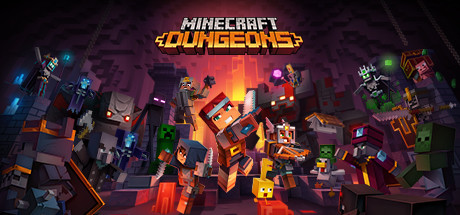
Minecraft Nucleus Co-Op Guide
Play Minecraft Java Edition in local split-screen on one PC using Nucleus Co-Op. Each player gets their own window, their own inventory, and plays on the same world simultaneously.
Get game setup in NucleusRequirements
How to Set Up Minecraft Java Edition Split-Screen
Minecraft Java Edition has one of the most in-depth Nucleus handlers. Each instance runs a fully separate Minecraft profile, allowing multiple players to join the same LAN world simultaneously from a single PC.
- 1.
Install Nucleus Co-Op
Download and extract to C:\NucleusCo-op. Add to Defender exclusions. Extract with 7-Zip password 'nucleus'.
- 2.
Download the Minecraft Handler
Open Nucleus and search for 'Minecraft Java'. Install the handler. It will ask for the path to your Minecraft Launcher executable — usually at C:\Program Files (x86)\Minecraft Launcher\MinecraftLauncher.exe.
- 3.
Create Separate Launcher Profiles
The Minecraft handler creates separate game data folders for each instance automatically. However, you may need separate Microsoft accounts for each instance to avoid authentication conflicts — check the handler notes for your specific version.
- 4.
Assign Inputs
For keyboard/mouse split-screen, each instance can be controlled by a separate keyboard and mouse (use the End key to lock input). Alternatively, use Xbox-style controller controllers — assign one per screen section.
- 5.
Launch and Open to LAN
Click Play in Nucleus. Once both Minecraft instances load, log into the game on the first instance, create or open a world, then press Escape > Open to LAN. The second instance can then join via the Multiplayer > LAN Games tab.
Tips
Allocate at least 4GB RAM per Minecraft instance in the launcher profile settings under JVM Arguments (-Xmx4G).
Use OptiFine or Sodium mod to reduce each instance's GPU load significantly.
For 4-player Minecraft split-screen, a PC with 32GB RAM and a strong CPU is recommended.
If you get 'account not authenticated' errors, the handler may require separate Microsoft accounts per instance. Check the handler notes for your Minecraft version.
The handler supports tModLoader-equivalent — for modded Minecraft, install Forge or Fabric in each profile and use the same mods on all instances.
Common Issues
Minecraft instances crash on launch via Nucleus +
Second Minecraft instance cannot join the LAN game +
How do I add Minecraft to Nucleus Co-Op? +
About Minecraft Java Edition Split-Screen
Minecraft Java Edition does not include native split-screen support — the Bedrock Edition (Windows 10/11 version) has limited split-screen, but Java Edition, which is preferred by most PC players for its modding support, has no such feature natively.
Nucleus Co-Op fills this gap by running multiple Minecraft Launcher instances, each with its own game profile and data directory. The instances connect to each other via Minecraft's built-in LAN feature, which allows players on the same network to join a hosted world.
The Minecraft Nucleus handler is actively maintained and updated with each major Minecraft release. It supports both vanilla Java Edition and modded instances via Forge or Fabric.
For the best Minecraft split-screen experience, each player should ideally have their own Microsoft account. Some versions of the handler support single-account multi-instance play, but this depends on the Minecraft version. Always read the handler notes carefully before setting up.